Release notes 2026
2026/11/26 The iOS recording app now supports Apple CarPlay
Capture conversations over road noise and read the transcript later.
Upload a meeting held while parked, a sales debrief with a passenger, or a voice memo for your next visit to mocoVoice while it’s still fresh.
Update the iOS recording app to the latest version to use CarPlay.

さっきの商談、納期は来月の頭でいけそう?
うん、先方もそれで大丈夫って。見積もりだけ今日中に送り直しておこう。
了解。じゃあ次の訪問までに直しておくね。
2026/11/25 Meeting titles can now be added automatically
Even with many uploads, files get clear titles automatically.
- Managing transcriptions from many members, or a mixed pile of them, gets easier.
- Turn on “Automatic title generation” in team settings to use it.
- Set a naming rule, such as the date or the other party’s name.
2026/11/17 [Web / iOS / Android release] Cut out more parts of your audio before transcription
- Cut unwanted audio, such as off-the-record remarks, small talk, and breaks.
- Select up to three parts to transcribe.
- Audio you cut out does not count toward usage.
On the web, select an audio file and press the scissors beside the waveform. On iPhone or Android, stop recording and choose Trim under Review audio. Please update the app to use this feature.
Watch the Web, iPhone and Android animations / Web instructions / iPhone and Android instructions
2026/11/16 Expanded on-screen help and guide videos
Circled question marks now open instructions for the current screen. For example, the one to the left of the team selector explains how to create a team.
Videos support 1.5x playback, video downloads, and explanatory image downloads for internal training and manuals. We will continue adding guides.
Using on-screen help and videos
2026/11/10 Recording app now available on Android
The mocoVoice recording app is now available on Google Play. The iPhone and Apple Watch app remains available.
2026/11/03 Deleting teams is now easier
Team administrators can now delete teams they no longer need from Team settings.
Past usage records are retained, and the remaining allowance for your organization or contract does not change. Some teams, including those with an individual paid contract, still require support assistance.
2026/10/27 Cut audio when deleting a transcript line
For more private conversations, you can remove off-the-record remarks from both the transcript and audio before sharing a meeting record with your team.
A line deleted with audio cannot be restored. Overlapping audio from other lines is also removed within that range.
Double-click a line and click the trash button to use this feature. See Editing a transcript for details.
2026/10/23 Improved recognition of overlapping speech
We improved recognition accuracy when multiple people speak at once, so each person’s words can be transcribed more accurately.
For example, even audio like this can be transcribed!
Speaker 1's voiceSpeaker 2's voice
Download this audioTranscription result (Japanese)
2026/10/22 Notice about php2shell (not affected)
The PHP vulnerabilities known as php2shell, disclosed on October 21, 2026, do not affect mocoVoice Cloud. You can continue using the service with confidence.
The mocoVoice cloud application does not use PHP and is not affected by these vulnerabilities (CVE-2026-109618 and CVE-2026-109619).
No updates, configuration changes, or other action are required from you in relation to this issue.
We also recommend enabling two-factor authentication as an everyday security measure. How to set up two-factor authentication
Reference: Official PHP security advisory
2026/10/17
[iOS App Release]
Easily record and upload audio with your iPhone and Apple Watch.
Recorded audio is automatically uploaded to mocoVoice when connected to the internet.
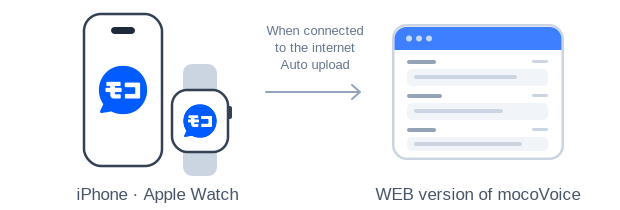
Search for "モコボイス 録音のみ" on the App Store or download from the button or QR code below.

 Scan with iPhone camera
How to use the recording app and feature differences from the web version
For those who want to record meetings more clearly, voice recorders recommended by mocoVoice are also available for purchase. For details, please contact us.
Apple, the Apple logo, iPhone, Apple Watch, and App Store are trademarks of Apple Inc., registered in the U.S. and other countries.
2026/10/16 Choose speakers from other teams
No need to add them to your team
Search by name and select a person. Their registered voice is used to label their speech in the transcript.
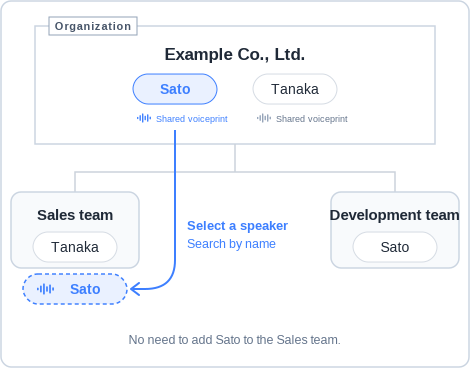
Choose members from other teams using voiceprints shared in your organization.
For organization admins and viewers. Choose from registered voiceprints shared within your organization.Invite colleagues more easily
Find colleagues and add them to your invitation list.
Requires a team admin role and organization admin or viewer access.Set meeting dates faster
Use shortcuts such as “Current date and time” to fill in the meeting date.
2026/10/15 Customize team display order & purchase recommended voice recorders
Reorder teams to your preference!
- Under “About you” at the bottom left of the screen, you can now select which team opens first when accessing mocoVoice (cloud.mocomoco.ai).
- Reduces the hassle of switching teams after opening the app.
- You can also change the order of the team menu by dragging and dropping via “Reorder teams” in the same menu.
- We’ve reorganized the layout by organization and group to make finding teams easier.
Purchase a recommended voice recorder
An order form is now available for mocoVoice-recommended voice recorders, ideal for capturing clearer meeting audio.
Please select “Purchase a recommended voice recorder” from “Customer Support” at the top right of the screen.
Free rentals remain available during your trial period.
2026/10/10 You can now send feedback and suggestions
Use the  Customer Support ⌄ button at the top right of the screen to send feedback and suggestions about the service.
Sharing specific background and context can help us improve the service.
Example: It can be hard to hear people in noisy construction site meetings, so it would help to play the audio right from the relevant part of the transcript.
*Please note that we may not be able to incorporate every piece of feedback or suggestion.
2026/10/05 You can now view meeting history
On a recording’s Transcript and Minutes screens, you can view summaries of related recordings in chronological order.
Trace how sales discussions and meetings have progressed, and open past recordings from the list to review the details.
2026/10/04 Timestamps are now set automatically when splitting speech
If word-level timestamps are available, splitting speech at the cursor sets the first part’s end time and the second part’s start time at the split point.
This saves you from entering those times by hand and makes it easier to find the corresponding part of the recording.
For steps, see Edit a transcript.
2026/10/03 Timestamps for translations & faster transcript display
Transcript translations now show the same timestamps as the original speech. Downloaded translation files include them too.
You can see when each translated remark was made and compare it with the transcript or recording more easily. In meetings with overseas colleagues or multilingual interviews, use a translated remark’s timestamp to find the original statement.
Transcripts now appear faster when opened or when switching between transcript and meeting notes tabs. Long recordings with many remarks are smoother to review.
For details, see Use the translation feature.
2026/10/02 You can now register voices
You can register team members’ voiceprints in team or organization settings.
Select speakers in the advanced settings before transcription. To avoid selecting them each time, save them from your name at the bottom left → Voiceprints → Default speakers.
Combine this with colored speech bubbles to make it easier to see who said what.
Register voices and select speakers
2026/10/01 You can now trim audio before transcription
After uploading, use the scissors icon on the playback bar to trim the audio to the part you need. Leave out small talk and waiting time before and after meetings from the transcription.
Transcribe part of an audio file
2026/09/23 Set colors for team speakers
Identify who is speaking more intuitively. Speaker colors are also reflected when you print a transcript.
Select a color from Team Management → Team Members.
2026/09/17 You can now use Analyze conversation while keeping the transcript screen open
Starting Analyze conversation on the transcript screen opens a panel in the bottom-right corner. Ask questions and dig deeper while viewing and playing back the transcript.
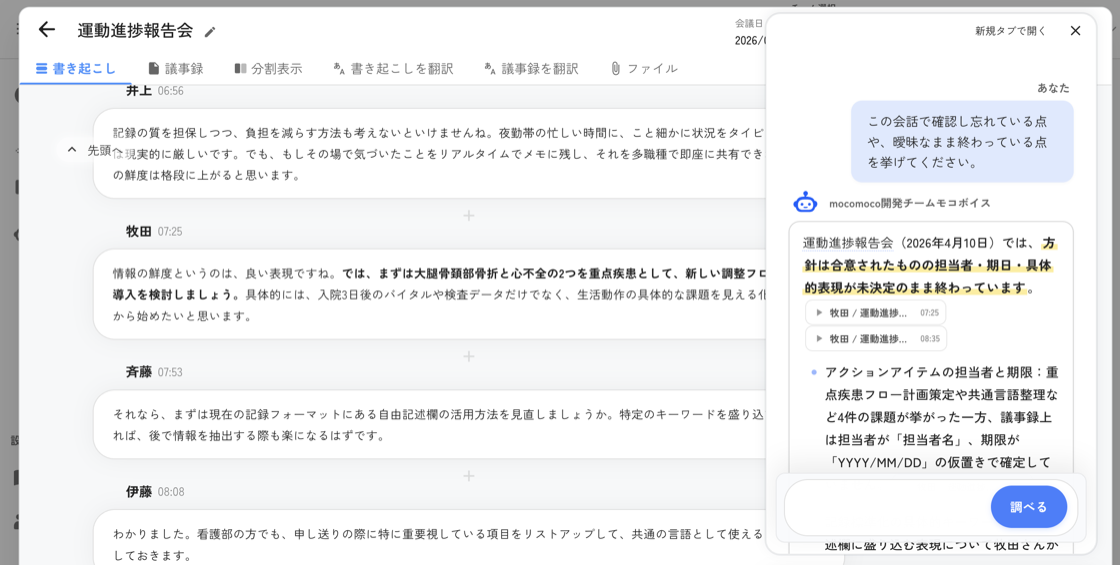
How to use
Press the Analyze conversation button on the transcript screen. Jump from citations in the analysis results to the matching part of the transcript right away.
On narrow screens, analysis still opens in a new tab.
The conversation analysis trial is available until the end of September.
See Analyze conversations for instructions.
2026/09/15 Share files and folders with individual recipients by email
You can now share files and folders by email without inviting recipients to your team.
Turn on email sharing in team settings to use this feature. (Off by default)
Recipients can view the content by signing in to mocoVoice with the email address that received the notification.
The shared view uses the same layout as regular files, including audio, transcripts, minutes, translations, and attachments.
See Share by email address for instructions.
2026/09/09 You can now set invitation validity periods
- Choose an invitation validity period of 24 hours, 3 days, or 7 days for organizations and teams.
- Set a longer period for people who cannot check their email right away, reducing the need to resend expired invitations.
See team invitations and organization invitations for instructions.
2026/09/04 Issue fixed
Fixed an issue where transcription results could be empty
We fixed an issue that could cause transcription results to be empty. If your result was empty because of this issue, transcribing the same audio again will produce the correct result.
2026/09/02 More detailed search in History and Files
Transcript text and meeting notes now also appear in search results.
Search by creator name
You can search by the name of the user who created the transcript. This is useful when looking for records created by a particular teammate.
2026/8/31 Speaker separation performance has improved.
- The AI now separates speech in noisy environments and distinguishes speakers with similar voices more accurately than before.
- This further reduces the effort needed to correct transcriptions.
- We plan to continue improving speaker separation accuracy.
2026/8/29 Select an industry-specialized transcription model
You can now select a specialized model for Legal, Medical, Finance, Pharmaceuticals, Veterinary, Logistics, Manufacturing, Food, or Chemical audio.
All specialized models are available during a trial. Customers with an individual contract see the model covered by their contract. When you select “Default,” MocoVoice automatically selects a model based on the audio content and current server conditions.
Learn how to select a specialized model
NotePricing for individual contracts
After the trial, specialized models provided under an individual contract are priced separately from standard transcription. Please contact us for details.
2026/8/28 Fixed issues on the meeting minutes screen
- Fixed an issue where the meeting minutes download button was not displayed.
- Fixed layout shifts affecting spacing and action buttons when switching between viewing and editing meeting minutes.
2026/8/23 Conversation analysis usage counts are now available
See AI adoption at a glance
In Organization Statistics on the organization management screen, you can view monthly conversation analysis execution trends by organization.
Parent organizations can also view totals that include accessible child and descendant organizations.
*Available only to organization management users
2026/8/11 [Trial] Scheduled creation is now available
You can now automatically create daily or weekly reports from transcripts in a selected period. Ready-made formats cover weekly and daily summaries, risk extraction, and customer or project updates. Teams can also create their own formats.
Learn how to use scheduled creation
NoteFree during the trial
Scheduled creation is currently available at no charge during the trial period.
2026/8/7 [Beta] Direct entry into Word and Excel now available
Download your Word or Excel file with AI-generated meeting notes already entered. Under template creation, register the file you want to use with “Create from Word / Excel (Beta).”
NoteAbout the beta
This feature is currently in beta and may not always work as expected.
We will improve this feature’s quality and supported scope step by step. Please share anything you notice or would like us to improve through the support form.
2026/8/2 Transcribe up to 6 audio or video files at once
Upload multiple files on one screen
Select up to 6 audio or video files at the same time and start transcribing them without choosing each file again.
You can configure the title, meeting date, dictionary, languages, and other settings for each file, so every transcript can be tailored to its purpose.
How to use
On the upload screen, select and open multiple files, or drag and drop multiple files together.
2026/8/1 “Analyze Conversation” history & transcript creator filters are now available
View analysis history anytime
Results from “Analyze Conversation” are now automatically saved and can be reviewed anytime.
You can search past history, edit titles, or delete items. Your analysis history is visible only to you and is not shared with your team.
Filter transcripts by creator
You can now filter transcripts by author in the History tab, making it easier to find the transcript you need. Use the filter option located to the right of “Merge” at the top of the History screen, accessible from the File tab.
2026/7/27 Approval workflows are now available
New: Approval workflow
You can have an approver review transcripts before the results become visible to everyone on the team. Learn more.
Support for workplace use
We also offer online walkthroughs. Contact us from Customer Support in the top right.
Coming soon
To make MocoVoice easier to use with larger teams, we are preparing a feature for sharing folders with selected accounts.
2026/7/18 English UI, drag-and-drop file moves, and new support options
Display the interface in English
You can now select English under “Display language” in “About you”. Switch the interface between Japanese, Korean, and English.
Organize files with drag and drop
On a computer, you can now drag transcripts into folders on the Files screen. You can also rearrange folders and move transcripts back to “Unsorted”.
Learn how to use the Files screen
Choose how to contact support
From Customer Support in the top right corner, you can choose the AI support chat, User Guide, email, online meeting, or phone.
2026/7/17 Korean UI and bulk invitations for organization members
Korean UI support
- Team members in overseas offices can now easily navigate the Korean interface.
- You can change the display language in About You.
- Analyze Conversation now replies in the language of your question.
Easier member addition for organization administrators
- Invite up to 100 members at once by email or CSV, and set organization roles at the same time. This speeds up registration for large groups.
Other updates
- Sidebar icons are now easier to distinguish.
- We plan to update file permission management so you can flexibly control access by organization, location, and department.
2026/7/16 View transcripts and meeting notes side by side
We added a Split View to the transcript screen. You can display your transcript and meeting notes side by side to compare and edit them at the same time.
Click “Split View” at the top of the transcript screen. Drag the middle divider to adjust the panel width.
- Split View is available on large screens like PCs.
2026/7/12 Record system audio for windows or your entire screen
In addition to browser tabs, you can now record system audio when sharing a specific window or your entire screen.
🎙️ How to use
When you start a recording, toggle on Also share system audio at the bottom of the share dialog before you click Share.
💻 Supported browsers
- Windows: Chrome, Edge
- Mac: Chrome (version 141 or later)
- Safari is not supported.
🔍 How to check your Chrome version
Click the Menu icon (⋮) in the top right corner > Help > About Google Chrome.
2026/7/7 Improved transcription quality
Better accuracy for numbers
We adjusted our proofreading algorithm so that the transcript captures important details like numbers, dates, and times more accurately.
2026/7/3 Analyze Conversations (Beta) now shows trending topics
Analyze Conversations (Beta) now highlights Trending topics currently discussed in your team’s recordings. If the same topic comes up across multiple recordings, mocoVoice automatically extracts it.
How to use: Click a topic that interests you to send it directly as a question to the AI.
2026/6/27 Added a new translation language
You can now select Hindi when translating transcripts and meeting notes.
2026/6/20 Save AI answers as images in Analyze Conversations (Beta)
It is now much easier to share answers with others.
How to use: Click the buttons (like Copy Image) below the answer.
Save scope: Choose to save “Only this answer” or the “Entire conversation.”
2026/6/16 Register job titles for members
You can now add job titles like “Sales Manager” or “HR Director” to members.
You can configure job titles for individual users, like “Sales Manager” or “HR Director,” from Team Settings and the organization settings.
Adding job titles gives you the following benefits in your daily tasks:
Smoother speaker name entry
When you edit a speaker name, the user’s name with their job title will appear as a suggestion. You can also generate meeting notes that include these job titles.
Analyze conversations based on your role
Analyze Conversations (Beta) uses registered job titles. You will get more practical feedback tailored to your background and role, such as Team Lead, Department Manager, or Section Manager.
Feature name change
The feature previously called “Role” is now “Team role.”
2026/6/13 Auto-add proper nouns and technical terms to your dictionary
Update your dictionary without the effort
Just save corrections to your transcript, and the AI will automatically extract and register proper nouns and technical terms to your dictionary. You can change the target dictionary from the top of the transcript (it defaults to your standard dictionary).
Cancel mistaken additions with one click
You will get a notification when a term is automatically registered. If it registered the wrong term, you can instantly undo it by clicking “Cancel registration” in the notification.
2026/06/06 Check citations for your meeting notes
Verify the statements behind your meeting notes
Run “Check citations” on existing meeting notes. The AI will compare the meeting notes with the transcript from an objective viewpoint and display the exact statements that act as proof.
Easily review manual edits
You can also attach citations to parts you edited manually. This reduces human error in your records.
How to use
Open an existing set of meeting notes in the Meeting notes tab, then click Check citations in the top right. Verification may take a few minutes.
2026/6/4 Analyze Conversations (Beta) is now more convenient
See the investigation process
In Analyze Conversations (Beta), you can now see how the AI searched through conversations and reached its conclusions. This shows the reference conversations and the investigation flow, making it easier to trace the proof behind the answers.
Copy analysis results
You can copy the answers exactly as they are and paste them into chats or documents. This makes it easier to share text-based analysis results with your team.
2026/5/21 Preview browser recordings before transcription
You can now play back browser recordings on the spot to check the content before you transcribe them. Make sure the recording captured what you intended, so you can move on to transcription with confidence.
- After you stop recording, you can play and scrub through the file directly in the selected file section.
2026/5/20 Attach meeting materials to transcripts
Manage meeting materials with mocoVoice!
You can add sales decks, scripts, participant lists, product manuals, and more.
Attaching materials improves transcription quality
If you attach materials in the advanced settings before transcribing, mocoVoice will start the transcription after automatically recognizing names, companies, departments, products, abbreviations, and technical terms included in the documents.
You can add files from “Advanced Settings” before transcribing, or from the “Files” tab on the right side of the meeting notes tab after transcribing.
- Files added later from the Files tab are only for storage and review. They will not retroactively apply to a completed transcription.
2026/5/14 Jump directly to a page number in history
We added a “Go to page” input field to the history list pager. Enter a number and press Enter to instantly jump to your target page.
Useful situations
- You have dozens of history pages and want to open an old transcript.
- You want to jump straight to a specific page without clicking
<or>multiple times.
- If there are few pages (7 or fewer), the input field will not appear because the page buttons are enough.
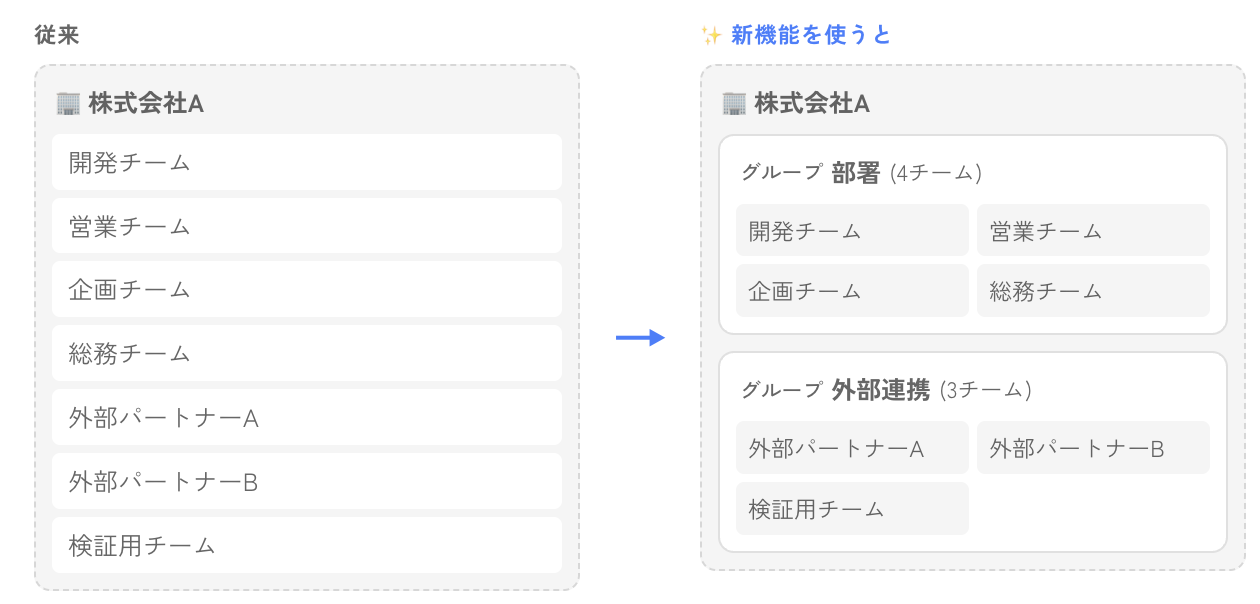
2026/5/7 Organize teams into groups within an organization
You can now organize multiple teams into custom groups like “Departments” or “External Partners.” Create and sort these groups from the organization management screen.
Usage examples- Consulting firms: Group teams by client, such as “Company A Project” and “Company B Project,” to see usage across all deals at a glance.
- Large enterprises with a headquarters system: Divide groups into “Sales HQ,” “Development HQ,” and “Admin HQ,” allowing HQ directors to quickly check only their own teams.
2026/4/29 Search all your mocoVoice history with Analyze Conversations (Beta)
With mocoVoice’s new feature, Analyze Conversations (Beta), the AI reads across all your accumulated audio. It can organize timelines or find highly specific statements, then play them back.
Use it from “Analyze Conversations (Beta)” in the left sidebar, or click the “Analyze Conversations (Beta)” button on the history screen.
Usage examples- Sales: “Summarize the progress with Client A and the next steps we should take.”
- Regular meetings: “List the decisions and progress reports for Project X in chronological order.”
Answers include citations. You can jump back to the exact statement with one click. It also includes a clipping feature to play only the quoted section.
- This feature is free to use while in Beta.
2026/4/26 Suggest team usernames for speaker names & better character count limits for meeting notes
Suggest team usernames when editing speaker namesWhen you double-click a speaker name to edit it, mocoVoice now suggests usernames from your team. Characters that match your input will appear in bold.
Better accuracy for meeting notes character limits (up to 20,000 characters)
We improved the accuracy of the character count target, making the output closer to your specified limit. You can now request up to 20,000 characters.
2026/4/22 Open files using keyboard shortcuts
You can now use keyboard modifier keys to change how files open when you click them in the history list.
- ⌘ + Click (Mac) / Ctrl + Click (Win): Open in a new tab
- Shift + Click: Open in a new window
- Normal Click: Open in the same tab
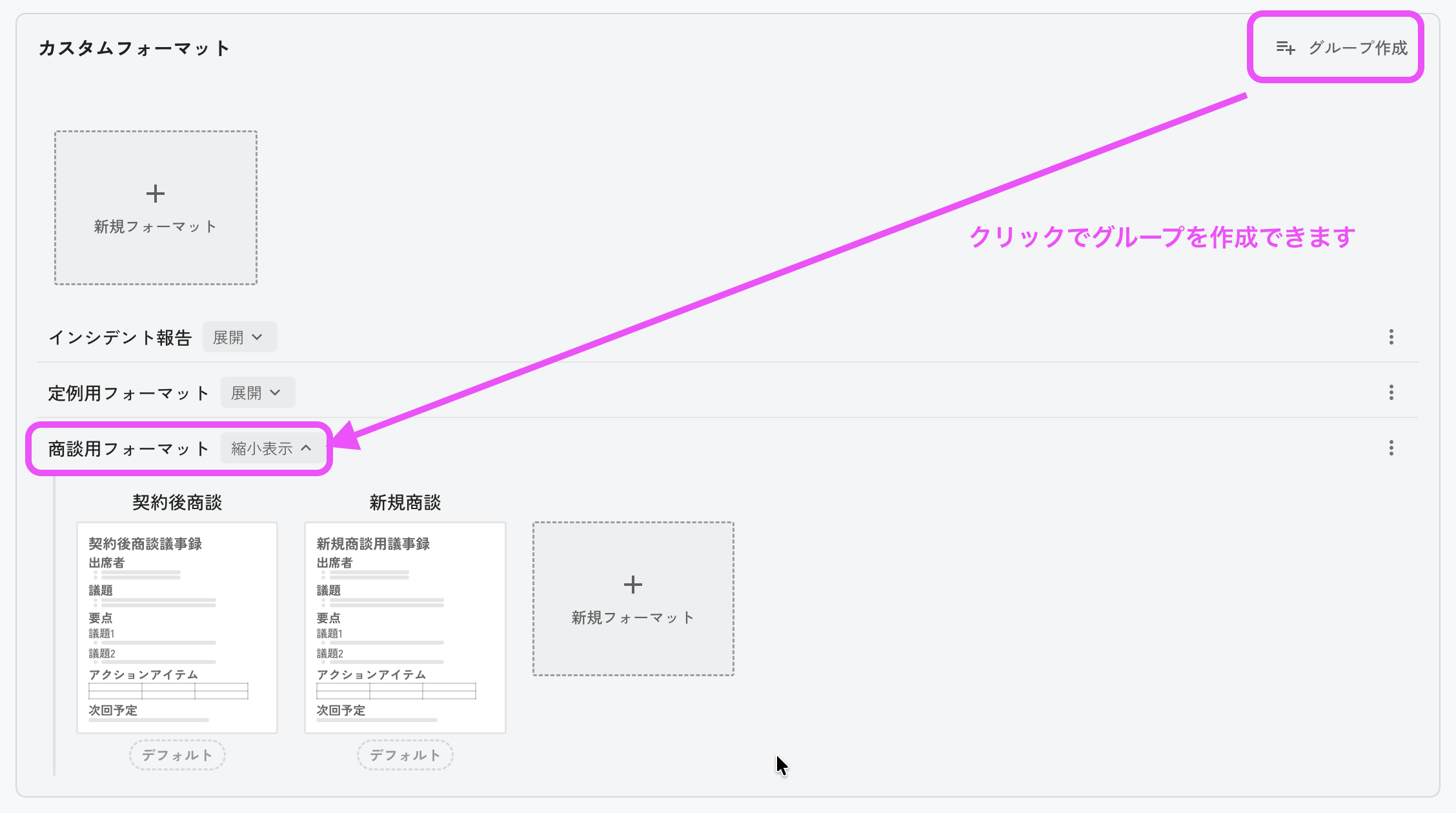
2026/4/19 Group custom templates
You can create groups from the “Create Group” button under “Dictionaries & Templates” > “Custom Templates.”
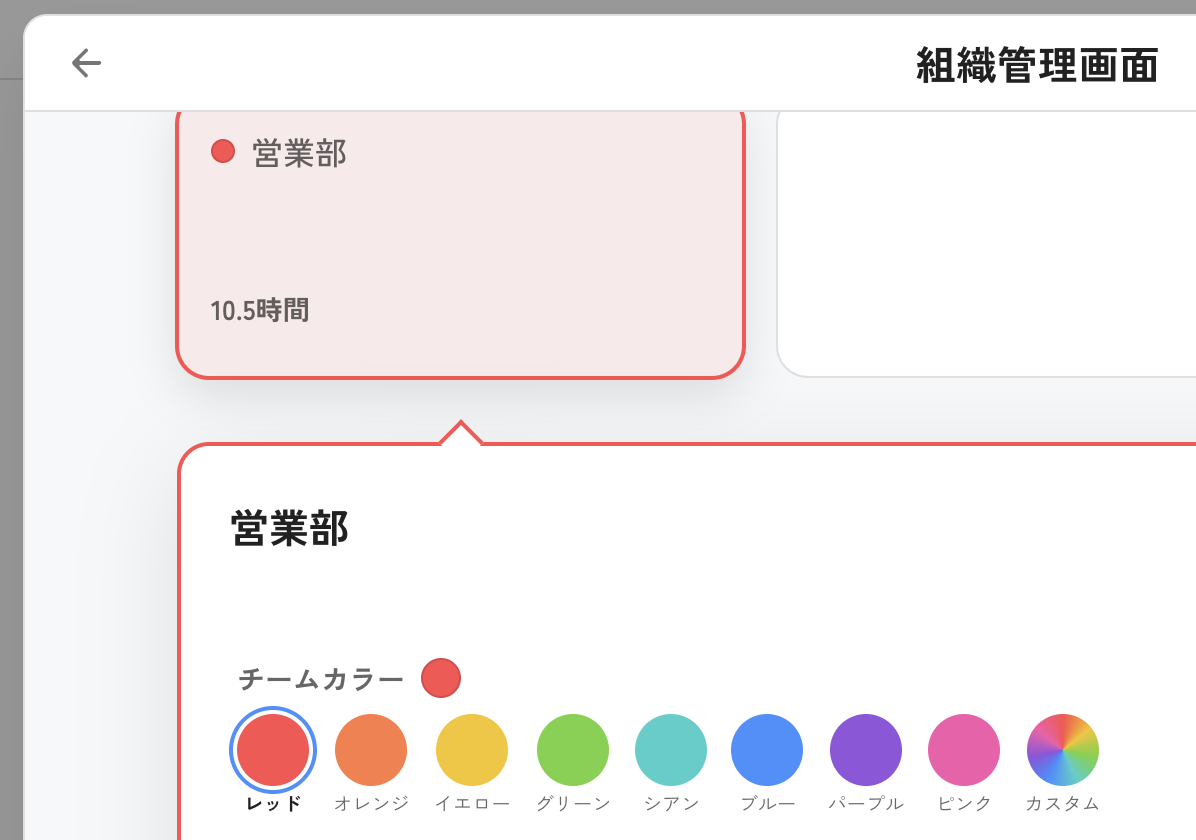
2026/4/17 Set team colors in the organization management screen
Make team selection more intuitive and prevent accidental actions.
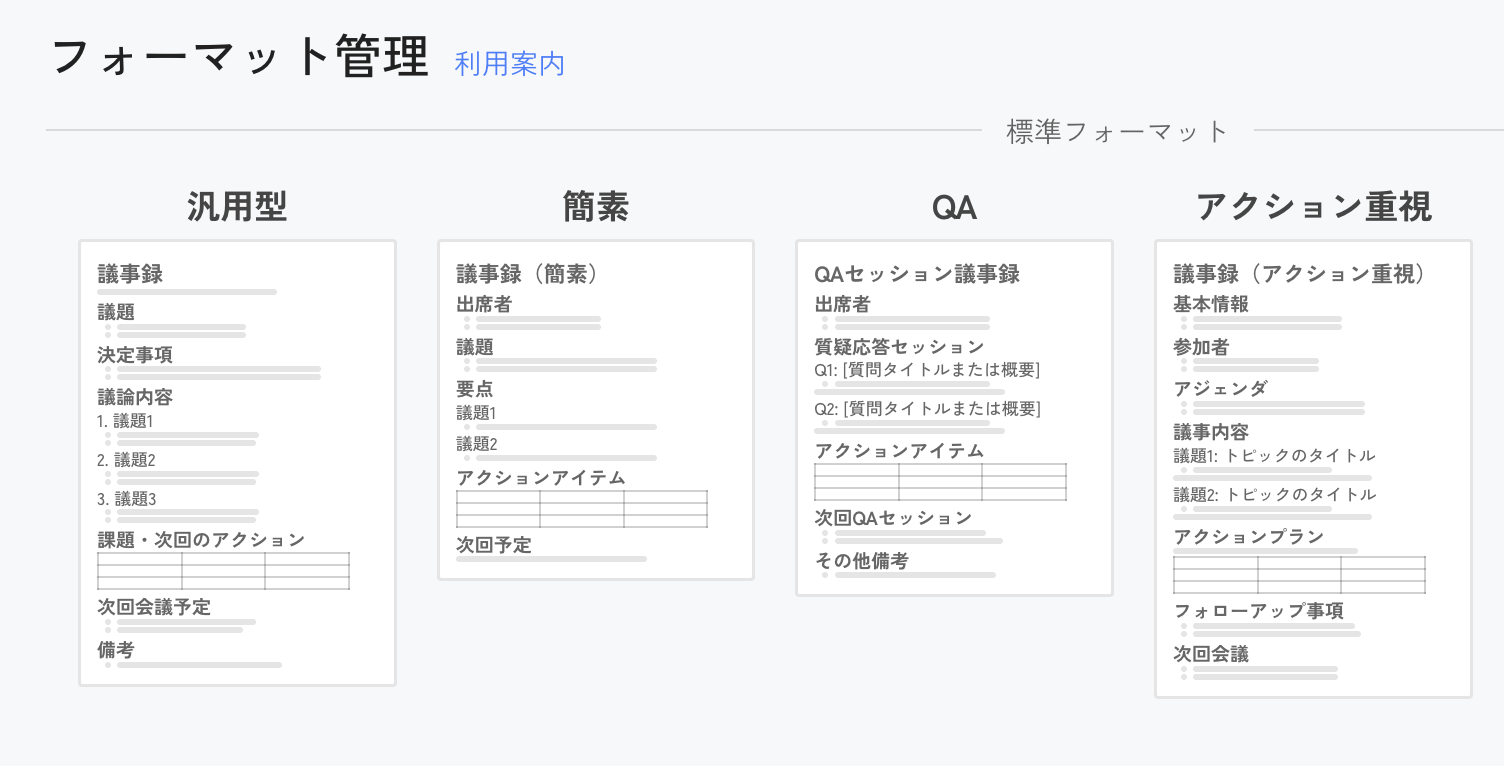
2026/4/5 Meeting notes templates are easier to read!
We improved the template preview display so you can review content more intuitively. You can now manage and edit all templates from the “Template Management” screen.
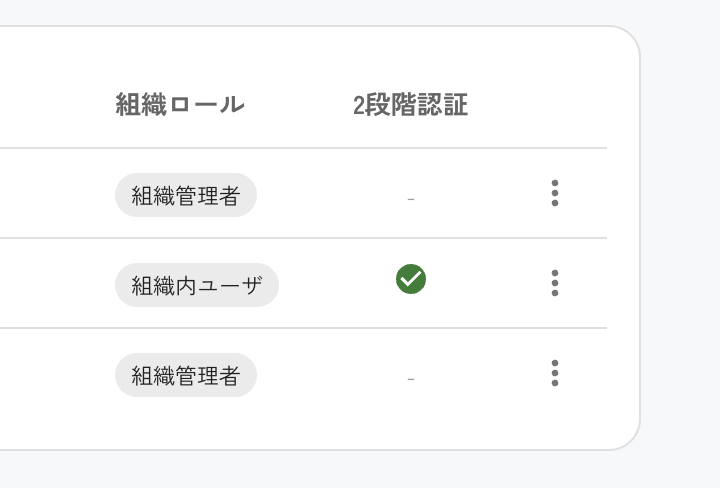
2026/4/3 Organization admins can check if members have two-factor authentication (MFA) enabled!
We added a “Two-factor authentication” column to the user list in the organization management screen.
2026/4/1 Notice of logo design change
Our new design balances professional capability and ease of use, while retaining our “speech bubble” motif. We are rolling it out starting April 1, 2026.
2026/3/28 UI improvements
After completing a browser recording, the title will automatically save in the format “Recording_Year/Month/Day Hour:Minute:Second”.
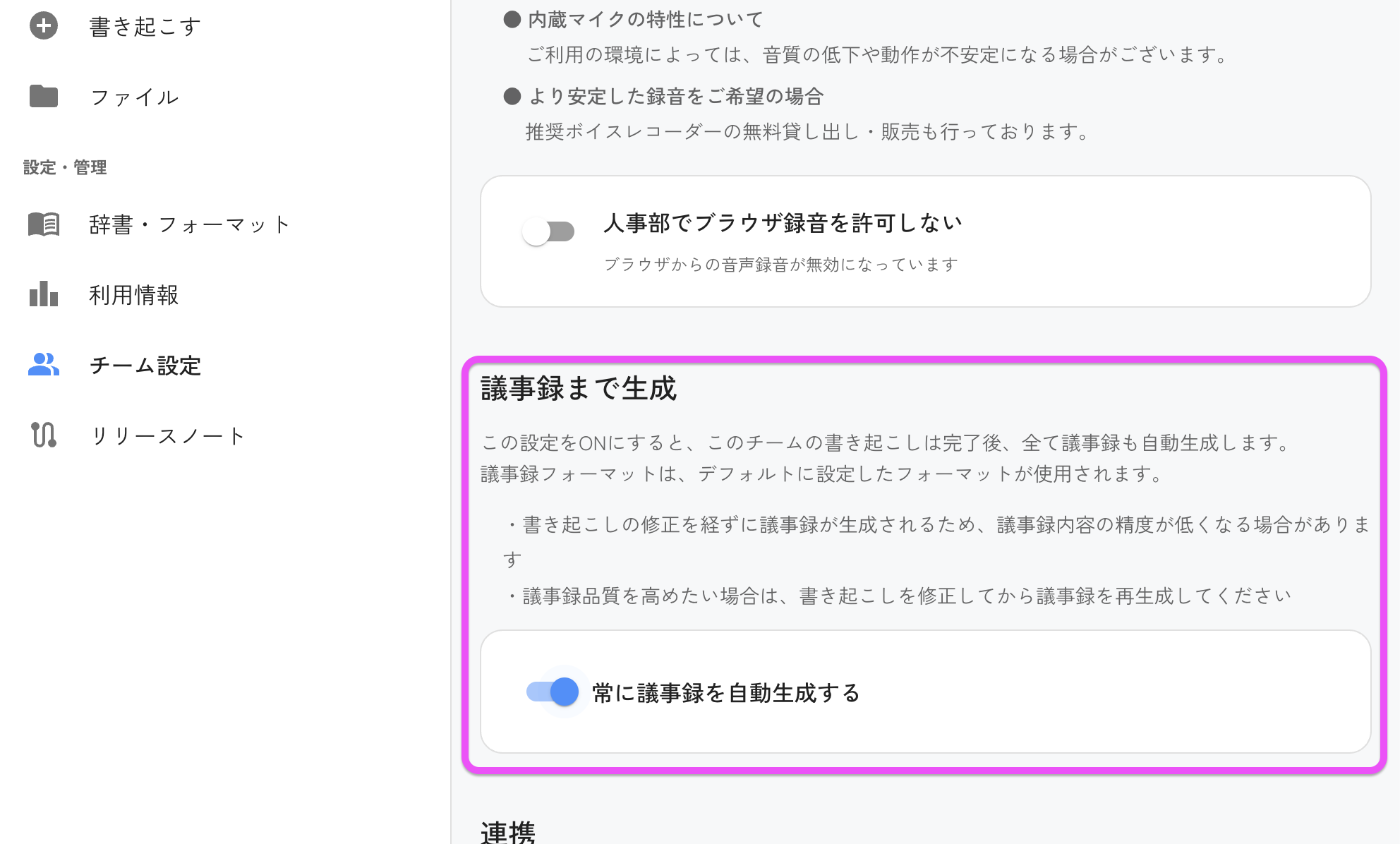
2026/3/21 Go from transcript to meeting notes in one step
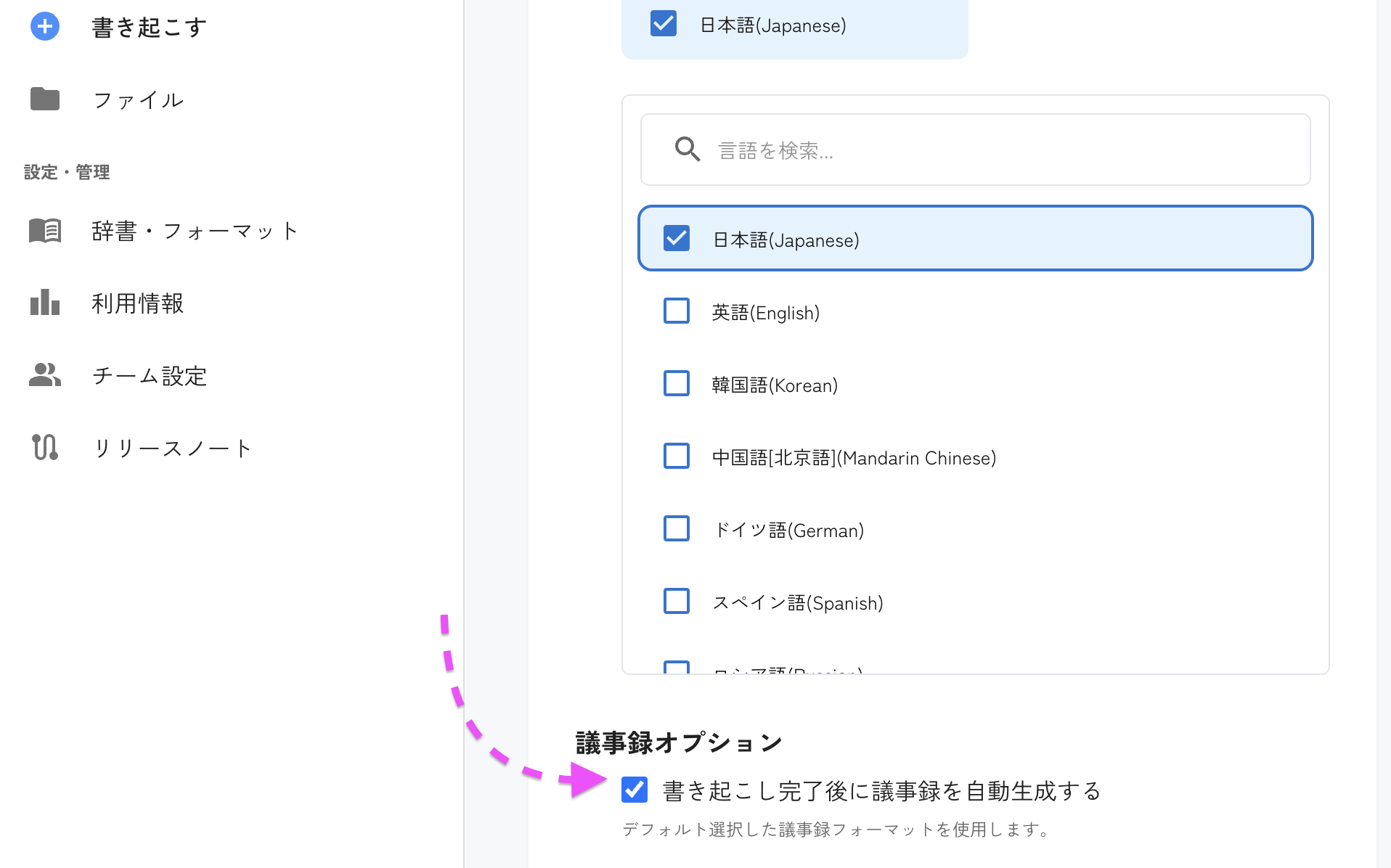
We added an option to automatically generate meeting notes after transcription finishes. Turn ON the “Meeting notes options” under “Advanced Settings” on the transcription screen.
2026/3/20 UX improvements
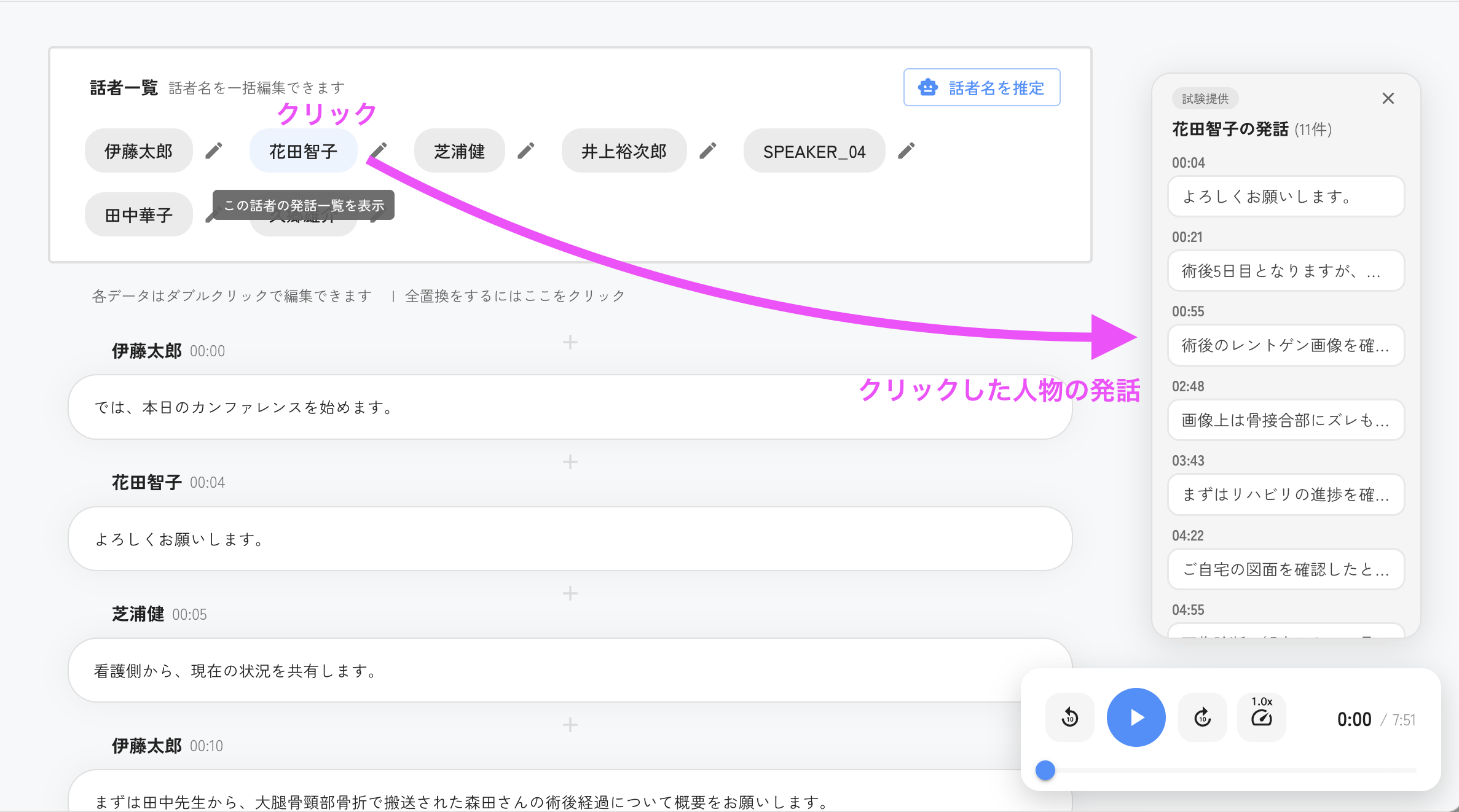
- You can now follow the statements of a specific speaker from the speaker statements list.
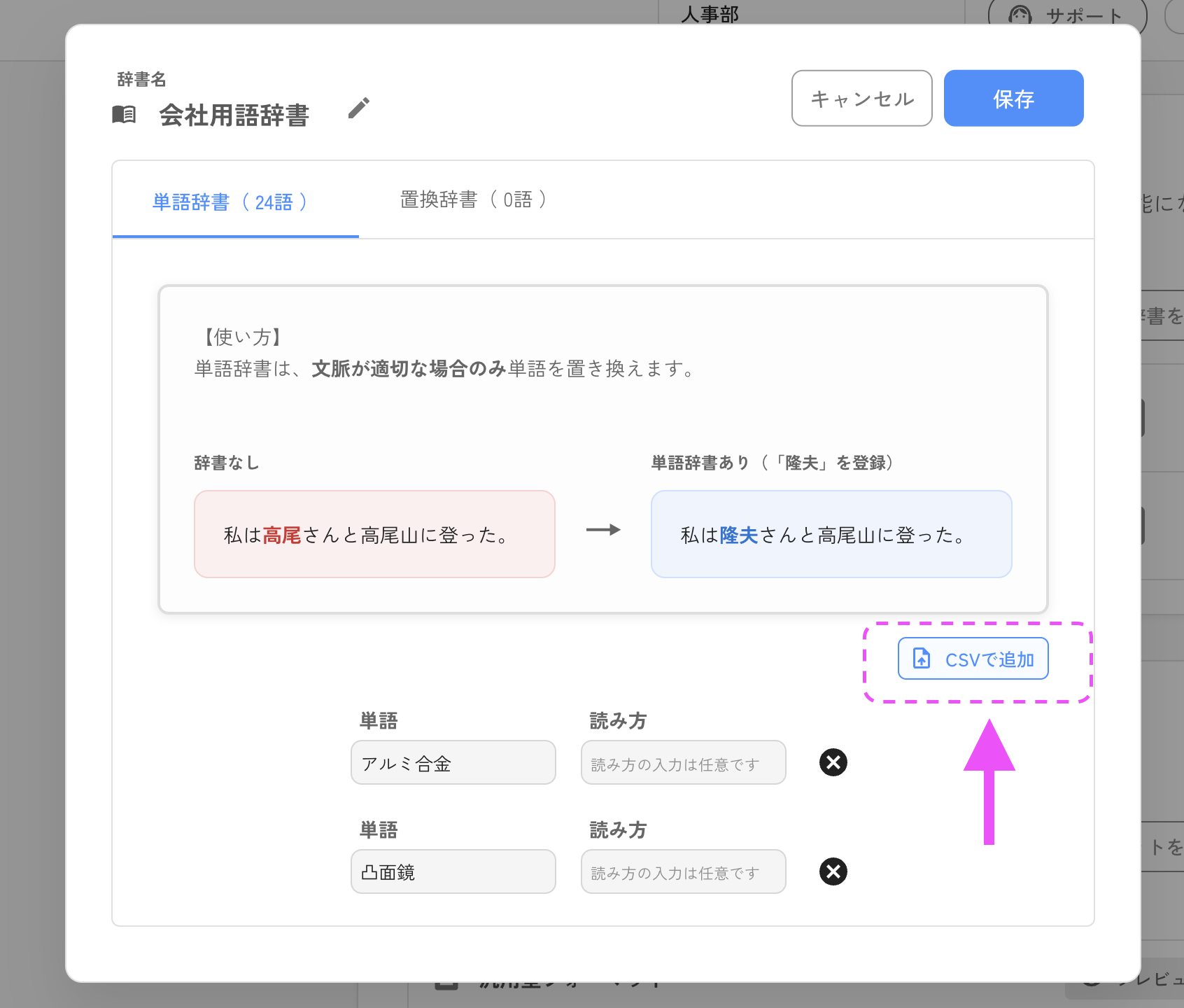
- You can add dictionary terms via CSV format.
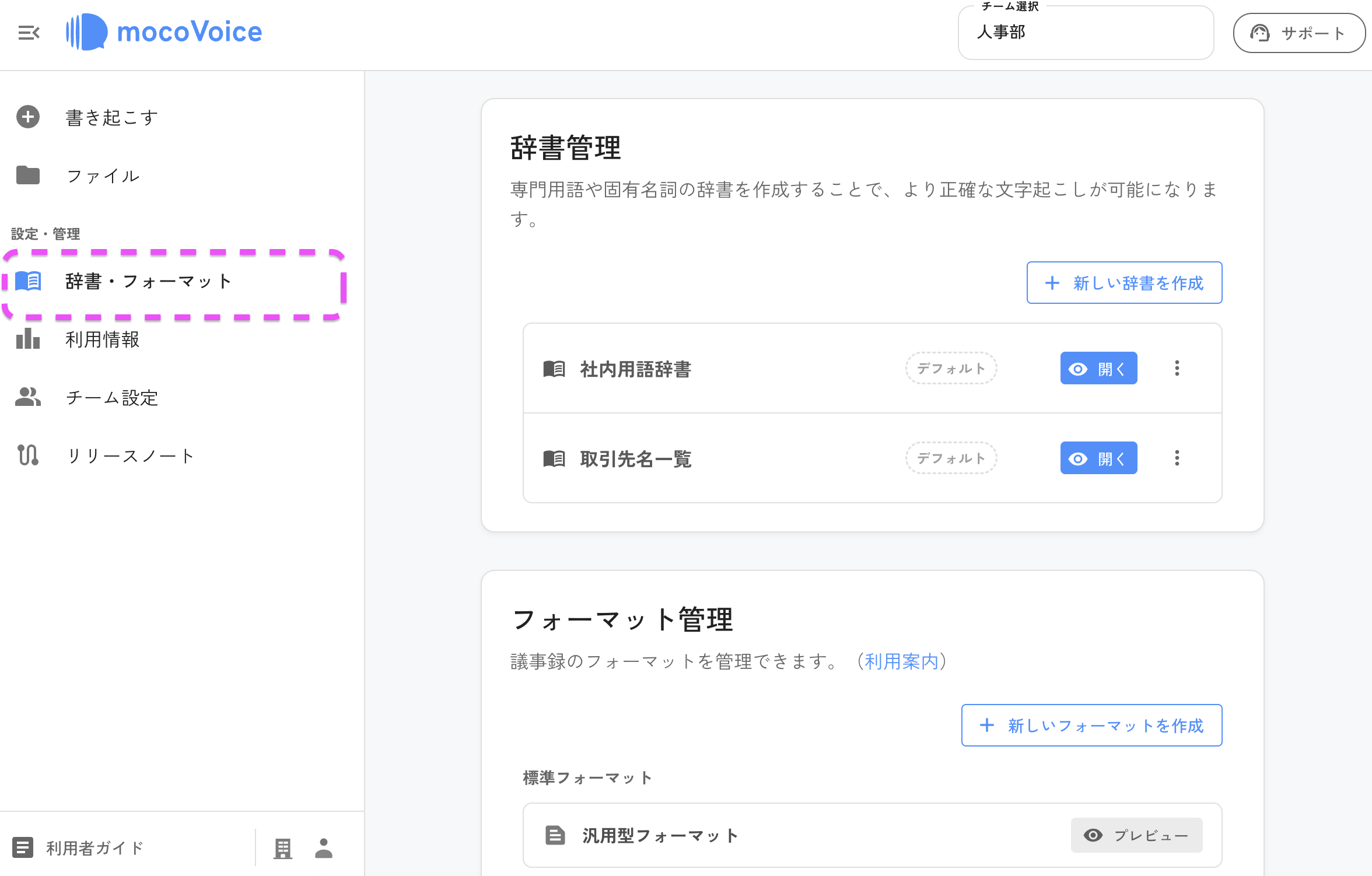
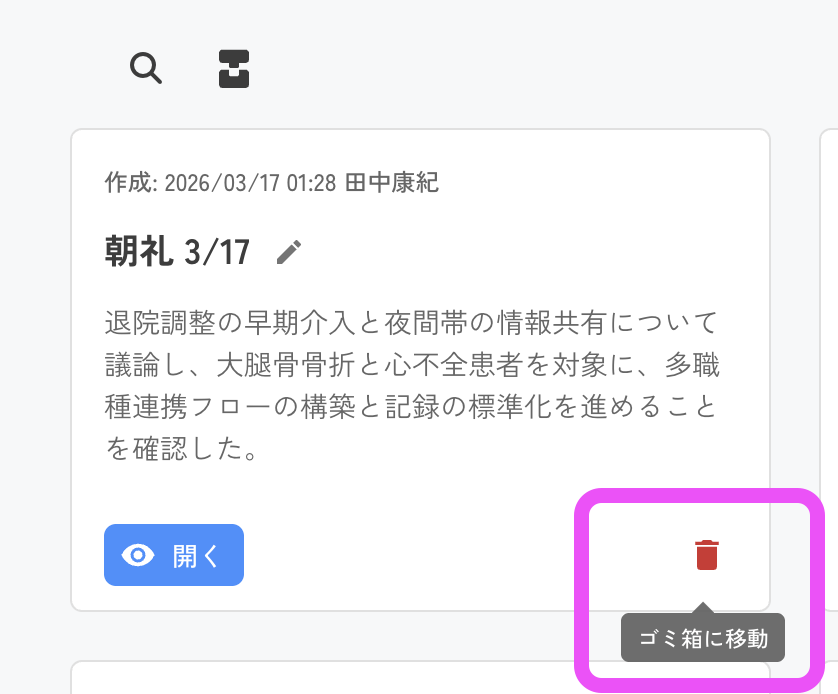
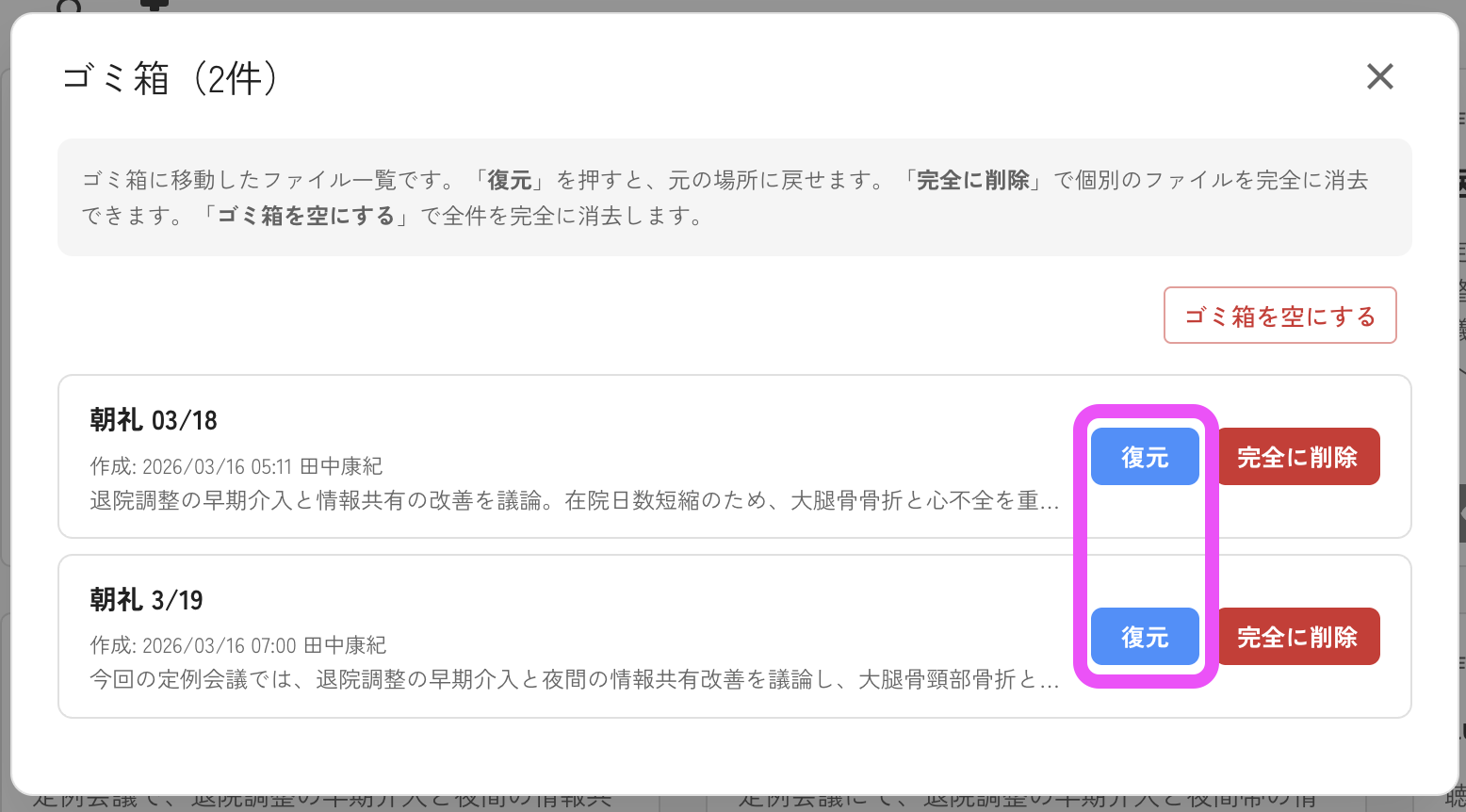
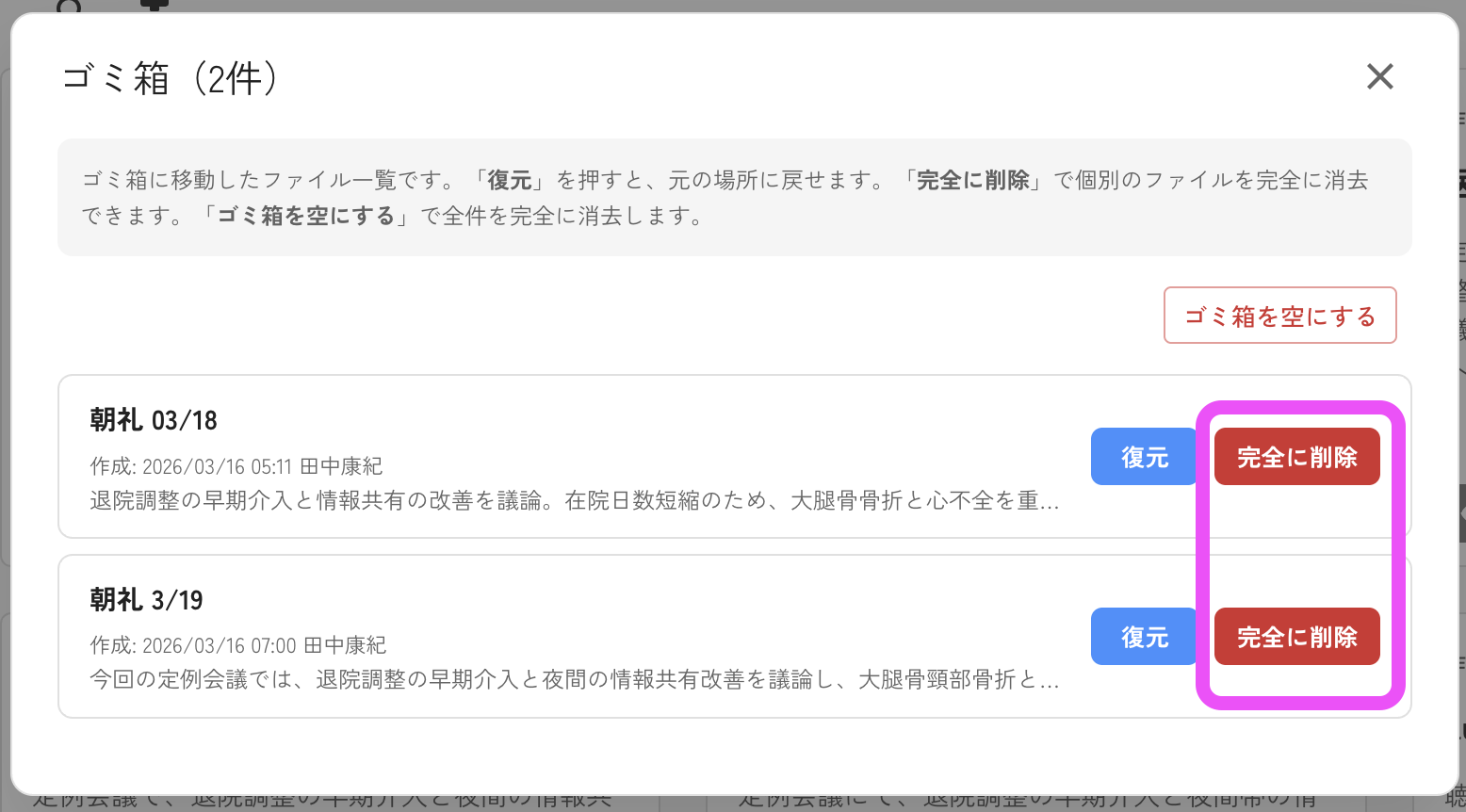
2026/3/19 🗑️ Added a “Trash” feature
The “Delete” button for transcripts is now “Move to Trash.” You can restore files you moved to the Trash by mistake.
2026/3/16 ✉️ Added email notifications when transcription finishes
You can register up to 3 notification email addresses from the “Integrations” section of your Team Settings.
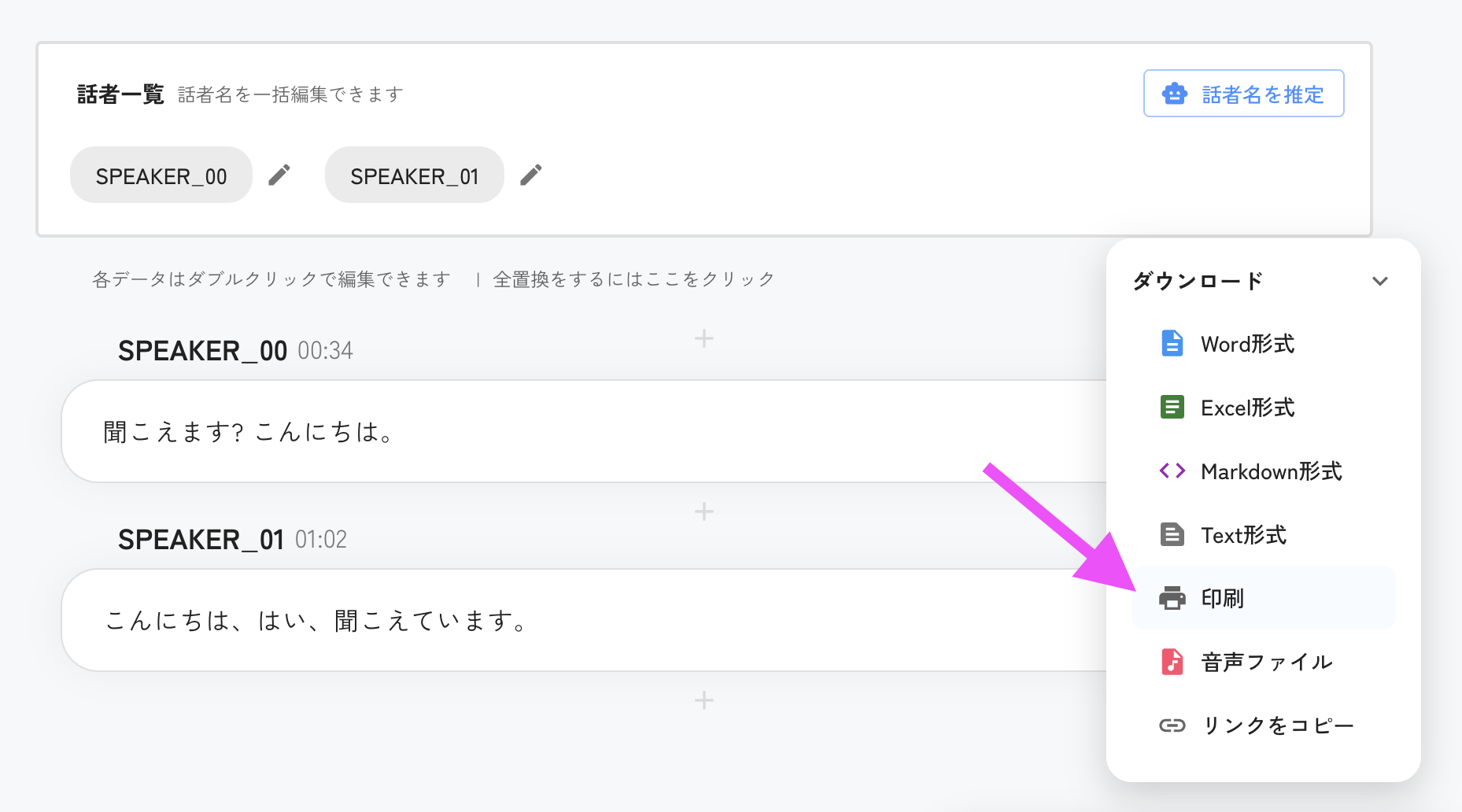
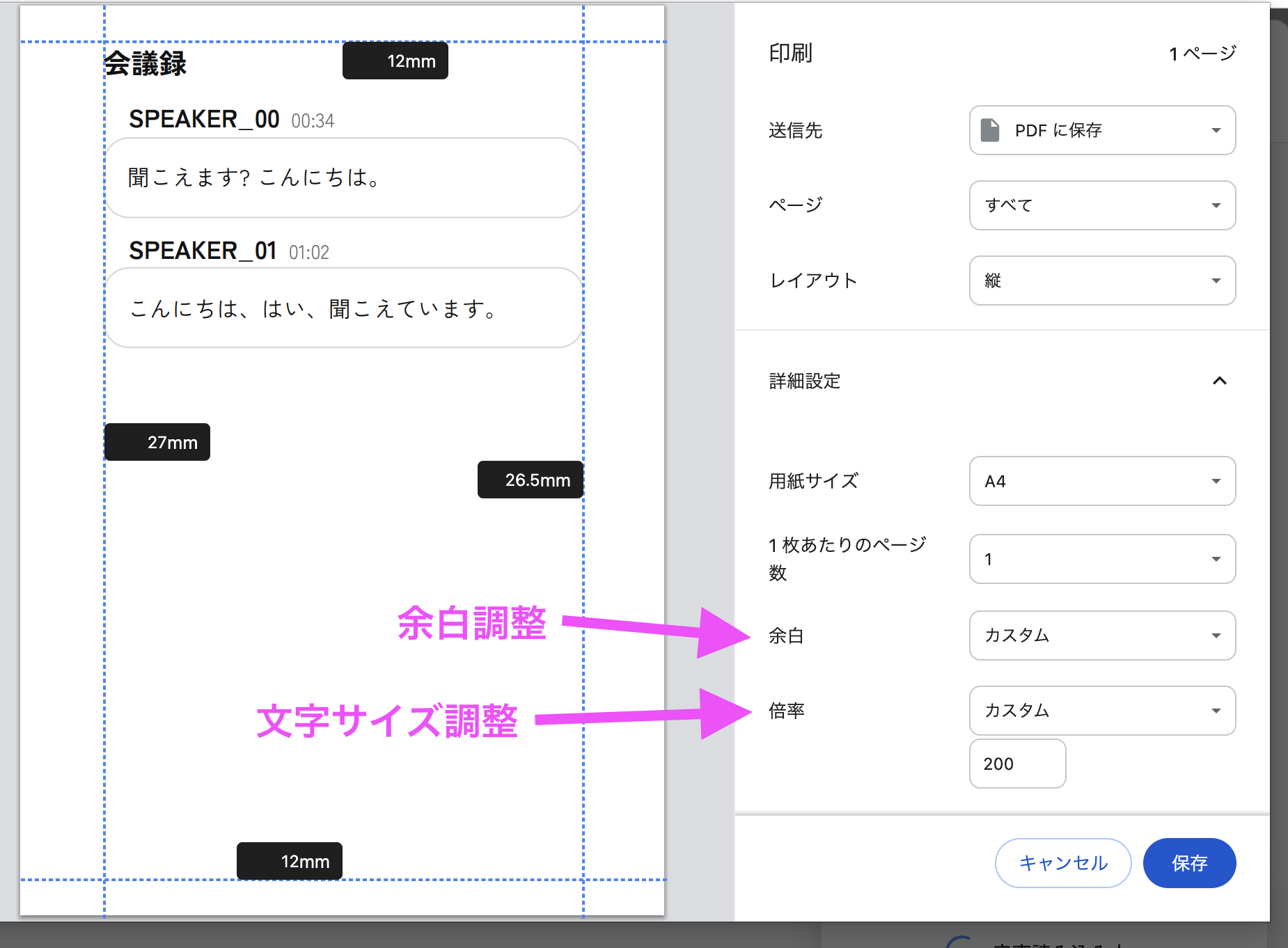
2026/3/9 🖨️ Print transcripts in a speech bubble format
You can print from the download button on the transcript screen.
2026/3/6 Fixed an error that occurred when combining transcripts
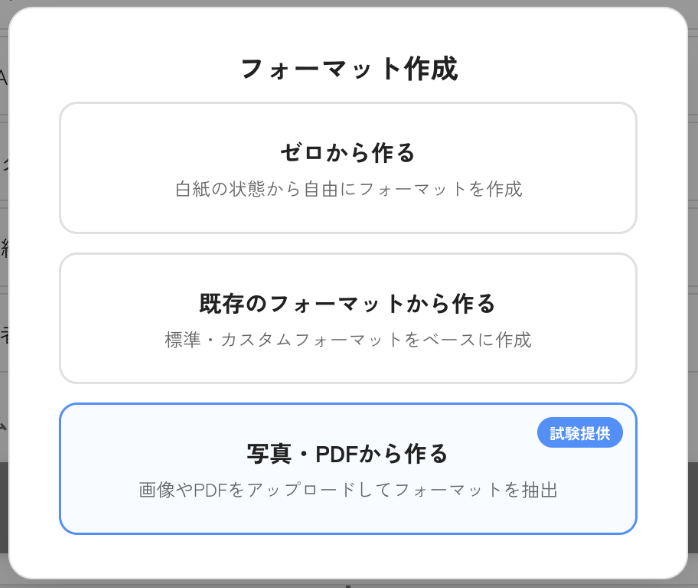
2026/3/5 Auto-generate templates from photos or PDFs of meeting notes!
Just upload a photo or PDF of your meeting notes, and the AI will automatically generate a meeting notes template. (Beta release)
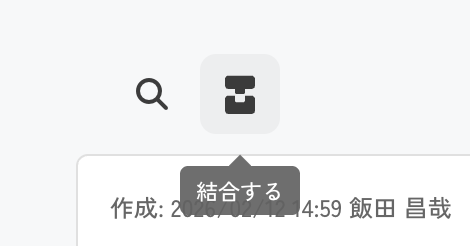
2026/2/24 Combine transcripts!
You can merge multiple transcripts into a single set of meeting notes (up to 10 files). Create meeting notes that span multiple meetings.
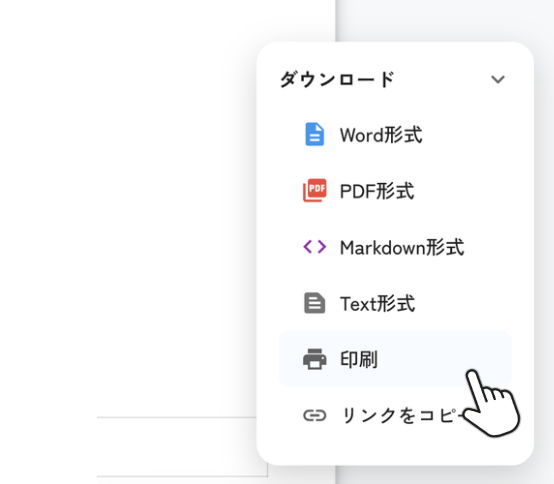
2026/2/7 Added a print button to meeting notes
We added a “Print” button to the download button for meeting notes.
2026/1/27 Search inside meeting notes
Click the magnifying glass icon on the files page to show the search bar. You can now search through the content of meeting notes in addition to the titles.
2026/1/22 Minor fixes to meeting notes
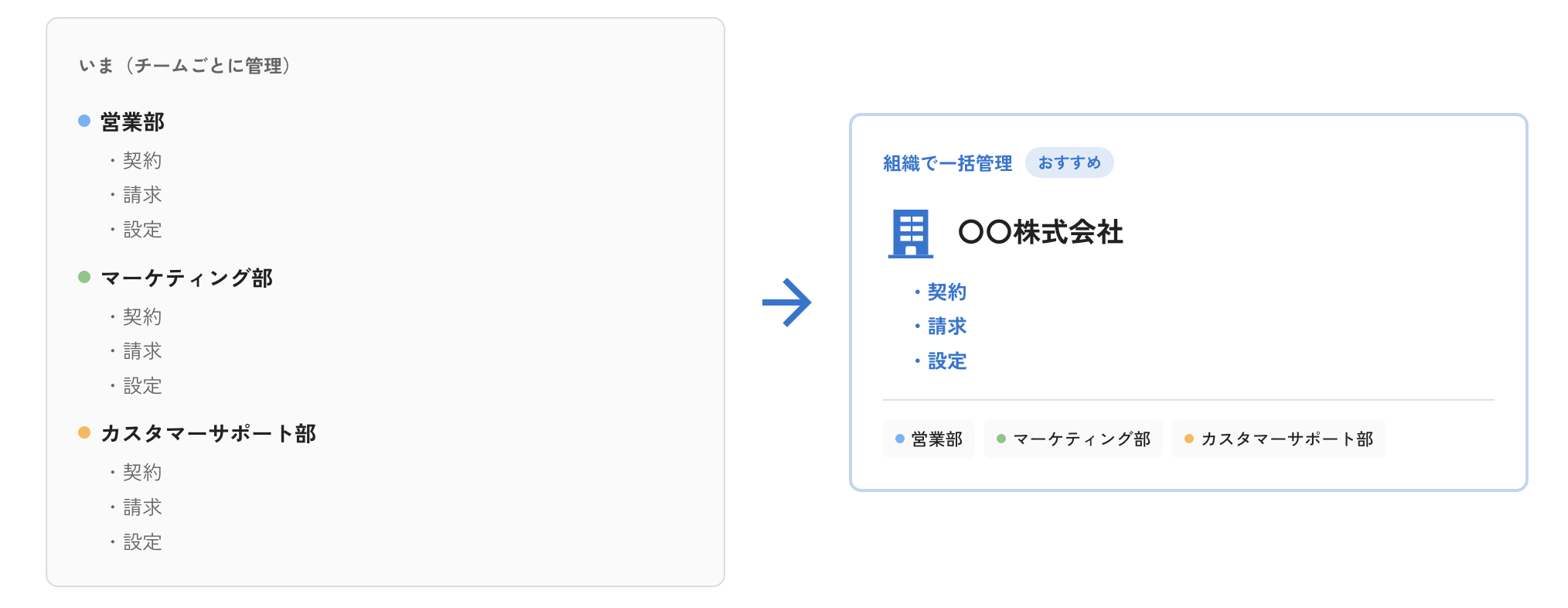
2026/1/12 Organization management features are now available
Manage multiple teams easily! You can manage members, roles, and team structure across all your teams.
2026/1/1 Insert images into meeting notes!
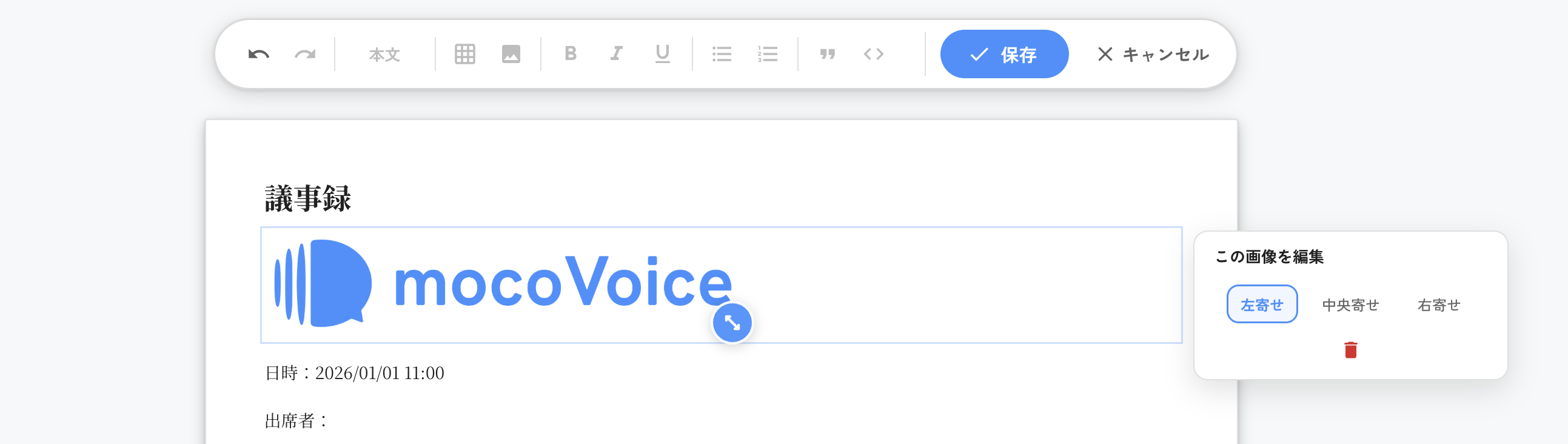
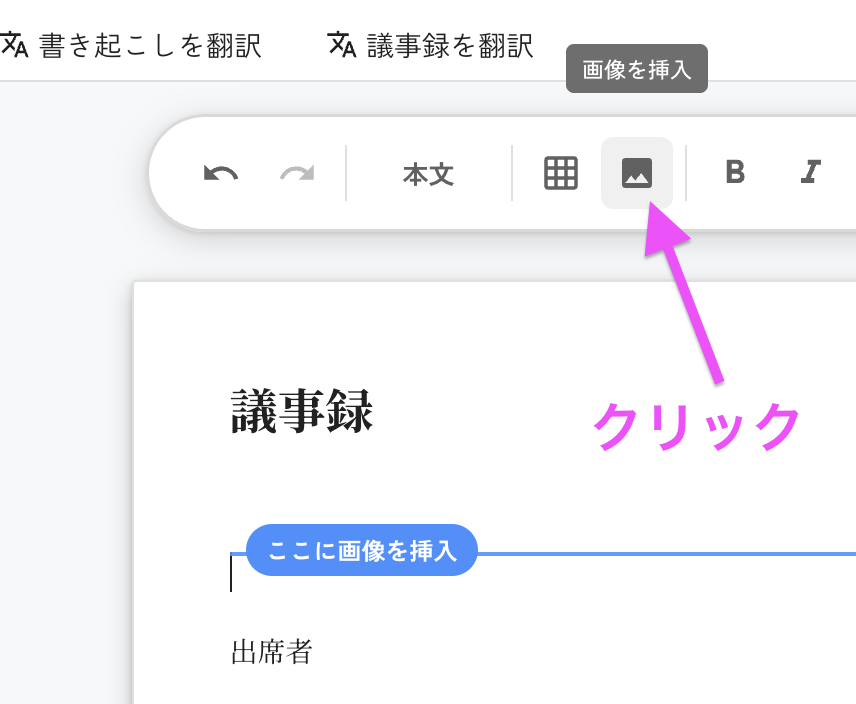
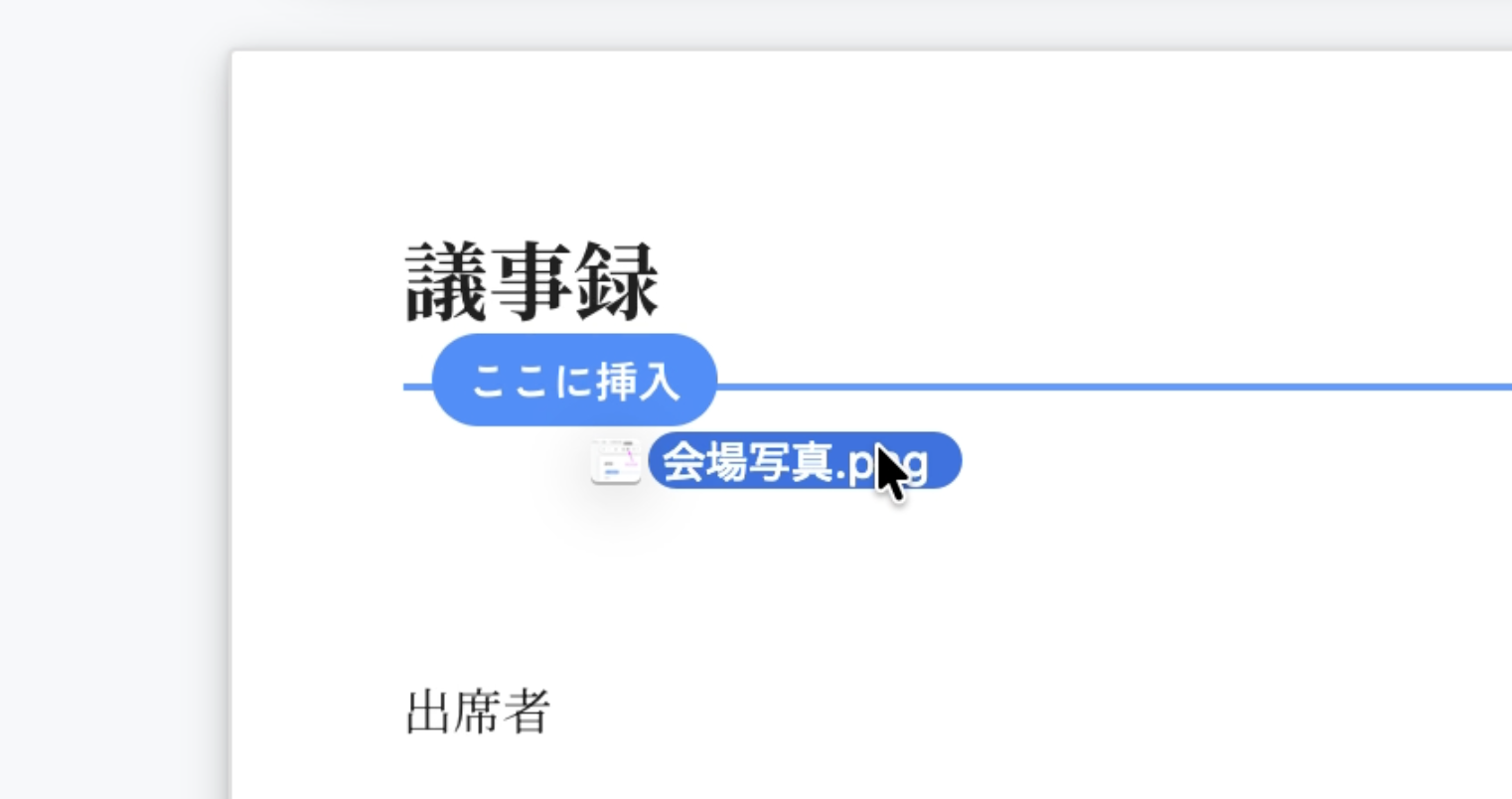
You can now upload images to your meeting notes. Insert them with drag-and-drop, and move them around as needed.