On-screen help and videos
When you need help, click the circled on the screen. It opens instructions and, where available, a video for that part of the app.
Example screen
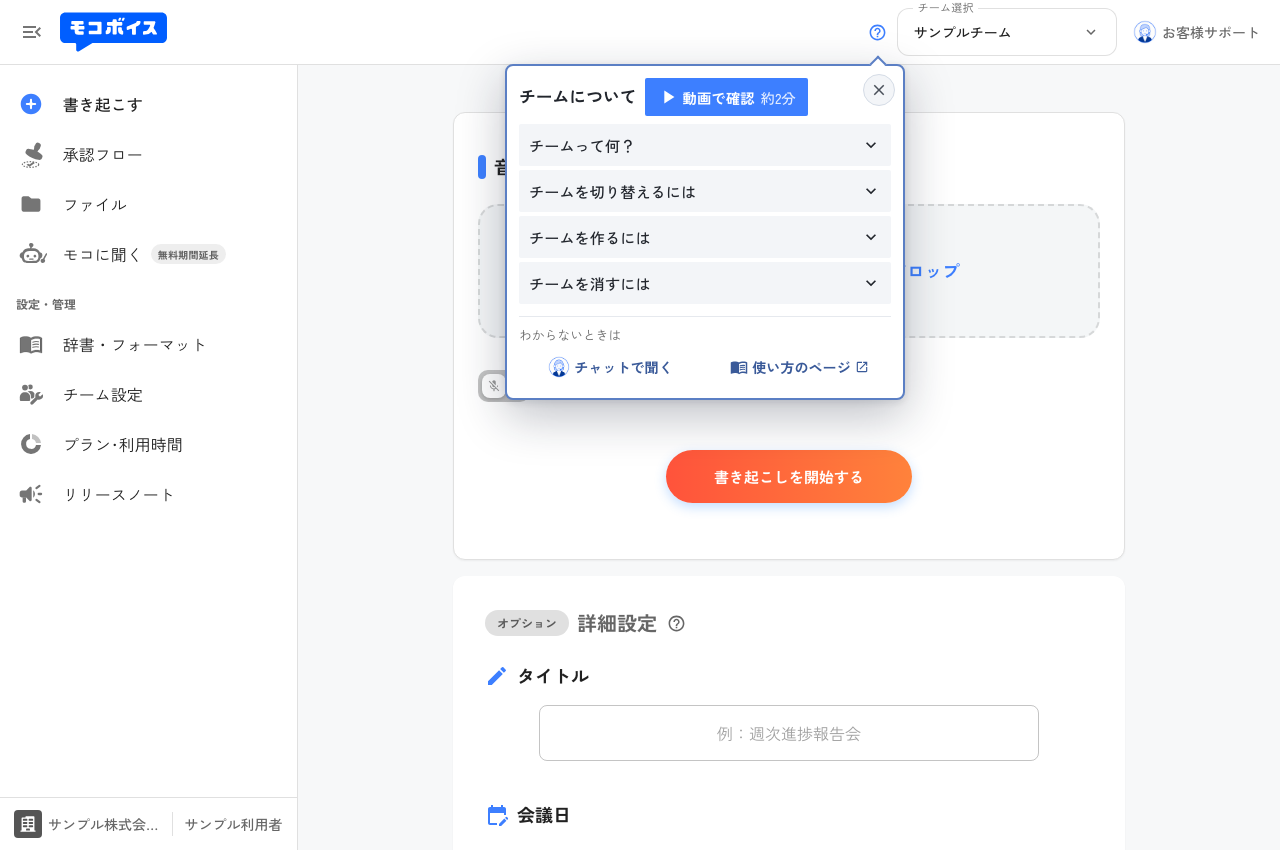
For example, the to the left of the team selector in the top-right corner explains how to create or join a team. On a phone, help opens in a modal window that fits the screen.
Steps
1. Open instructions for an action
Click the beside a heading or control, then choose a topic. For topics with a video, Watch videos starts at that action.
2. Watch the full video or change speed
Use Watch the video beside the help heading to play from the beginning. The 1.5x control in the player changes the playback speed.
3. Save a video or explanatory image
Click … in the bottom-right corner of the player to open its menu.
- Save video downloads the guide as an MP4 video.
- Save this frame downloads the displayed explanatory image as a PNG.
Use saved videos for internal training or onboarding, and images in your team’s manuals and instructions. These options are available for topics that include a video.
We have expanded help for audio trimming, transcript editing, speakers, dictionaries and formats, plans and usage, Ask Moco, and organization management. We will continue adding guides.