iPhone and Apple Watch Recording App
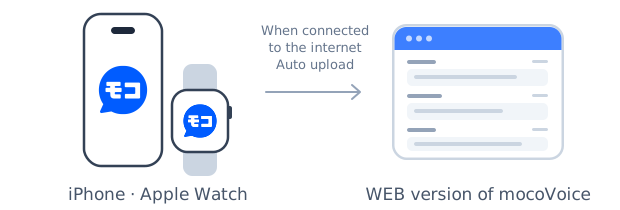
Audio recorded on your iPhone or Apple Watch can be automatically uploaded to mocoVoice when connected to the internet. Reviewing and editing transcription results and creating meeting minutes are done in the web version of mocoVoice.
Download
Search for "モコボイス 録音のみ" on the App Store or download from the button or QR code below.

 Scan with iPhone camera
Getting Started
- Install the app on your iPhone and log in with your mocoVoice account.
- Check the team to send the recording to and the transcription language, then start recording.
- When you stop recording, the audio will be automatically uploaded according to your network settings.
- Check the transcription results in the web version of mocoVoice.
Apple Watch recordings are uploaded via your iPhone. You can still record while disconnected from your iPhone, and the audio will transfer to your iPhone once reconnected. Options such as teams used on the Watch are synced from your iPhone.
Feature Differences Between the Recording App and Web Version
| Feature | iPhone app | Apple Watch app | mocoVoice Web |
|---|---|---|---|
| Record with microphone | ⚪︎ | ⚪︎ | ⚪︎ |
| Upload recorded audio | Sent automatically when connected | Sent via iPhone | Select and send audio/video files |
| Select team, language, etc. | ⚪︎ | Select from options synced from iPhone | ⚪︎ |
| Review and edit transcription results | - | - | ⚪︎ |
| Create and edit meeting minutes | - | - | ⚪︎ |
When an Upload Fails
Audio that could not be sent due to communication errors or team usage limits is saved on your iPhone and remains under “Waiting to Send” in your history. In the case of a communication error, it will automatically retry once the connection is restored.
If you encounter a usage limit error, please check with your team administrator. Once the limit issue is resolved, press and hold the recording in “Waiting to Send” and select “Send Now” to resend it.
Once the audio upload is complete and the transcription request has been accepted, the audio file is deleted from the app, leaving a record under “Sent”. The app is not designed to retain audio files until transcription finishes. Please check the results in the web version.
If you delete unsent recordings or uninstall the app, the audio on your device will be lost. While recordings remain in “Waiting to Send”, do not delete them or uninstall the app, and check the transmission status.
Audio Quality Tips
Transcription accuracy is also affected by how clear the recorded audio is.
- Place your iPhone or Apple Watch as close to the speaker as possible. Voices that are distant or quiet can be difficult to pick up.
- Record in a location where rustling clothing, desk vibrations, or air conditioning noise are minimized.
- In large meetings, check that all participants’ voices can be captured, and make a short test recording to play back beforehand for peace of mind.
To Record Meeting Audio More Clearly
You can also purchase a voice recorder recommended by mocoVoice. For details, please reach out via Contact Us.
Audio files recorded with a voice recorder can be uploaded from the web version of mocoVoice. For instructions, see Start Transcription.
Apple, the Apple logo, iPhone, Apple Watch, and App Store are trademarks of Apple Inc., registered in the U.S. and other countries.